
View payments
This feature is in pilot with some customers. If you're interested, contact your Vitesse Representative or Support.
Use the Payments list to view key payment details, track payment status, and apply filters or sorting.
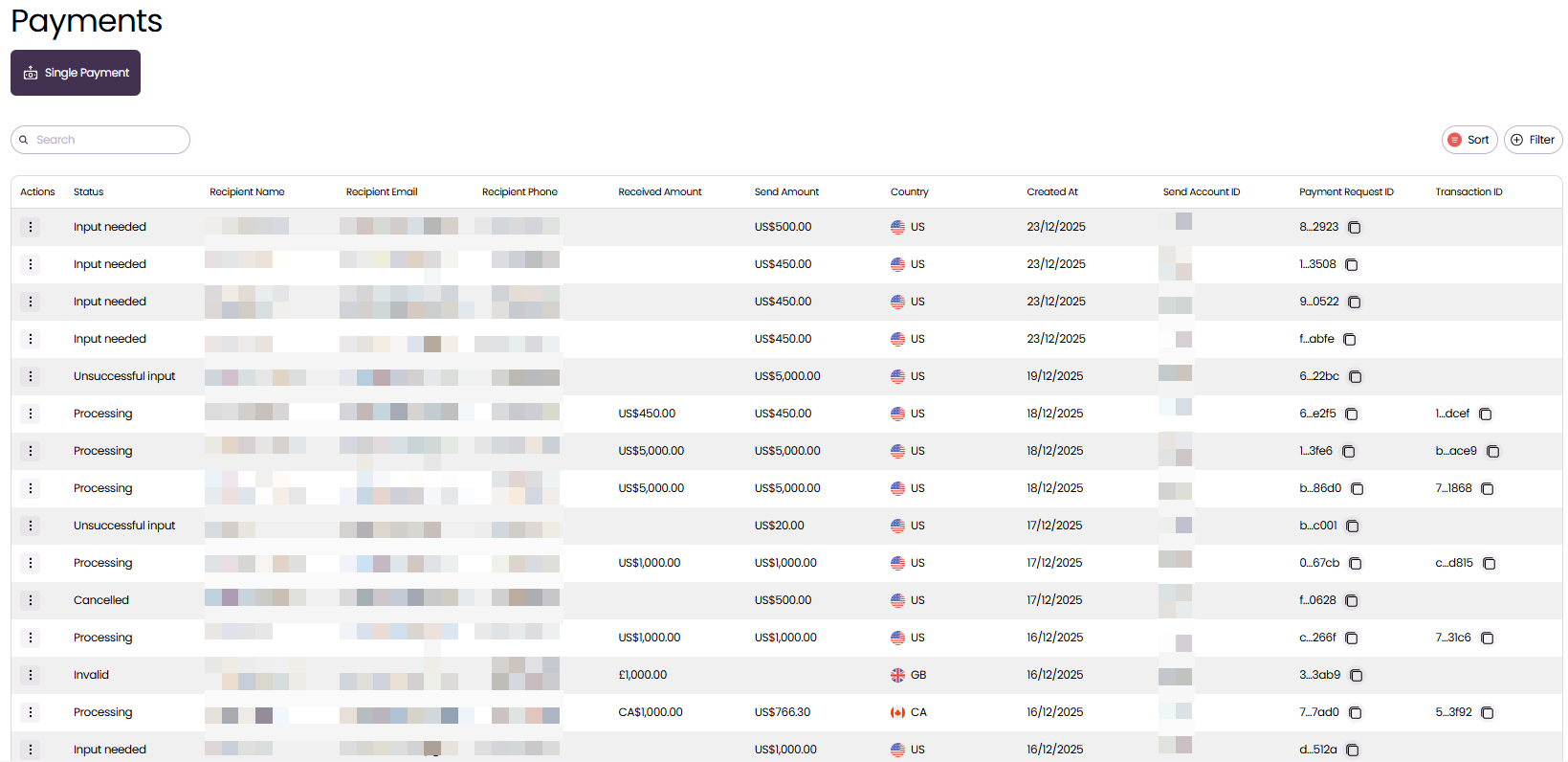
View all payments
You can view all payments associated with the accounts you have permission to access.
- Select Payments to open the Payments list.
View payment details
You can see the full breakdown of a payment, including recipient, ramount, and associated Programme information, and financial and reference details.
- Select Payments to open the Payments list.
- In the Actions column, select
⋮next to the payment you want to view. - Select View payment details to see all the data related to that payment.
View payment status
Use the Payment Status panel to view a full event history for a payment, including system actions and recipient activity.
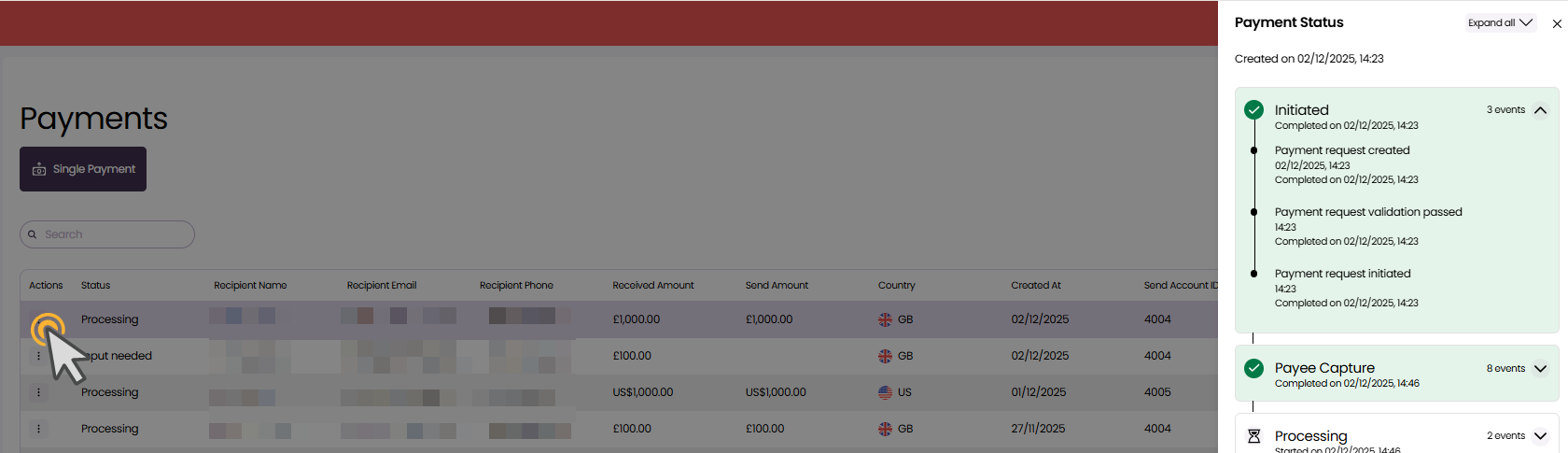
- Select Payments to open the Payments list.
- In the Actions column, select
⋮next to the relevant payment. - Select View payment status to view all system and recipient events for that payment.
Search payments
You can search the Payment list using the full Recipient Name or Payment Request ID.
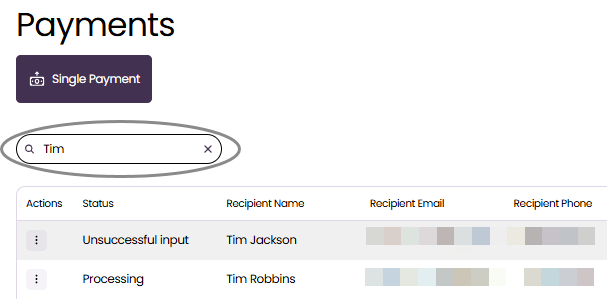
- Select Payments to open the Payments list.
- Type or paste the full search term into the Search field.
Sort payments
Sort the Payments list by any column, in ascending or descending order.
- Select Payments to open the Payments list.
- Select Sort (top-right).
- Choose the column you want to sort by.
- Choose the sort order.
- Select Apply.
Filter payments
Apply filters to narrow the Payments list by column values.
-
Select Payments to open the Payments list.
-
Select Filter.
-
Choose the column you want to filter by.
An operator is applied automatically. -
Alongside the column name, select
∨to choose different operators (for exampleis equal, oris between).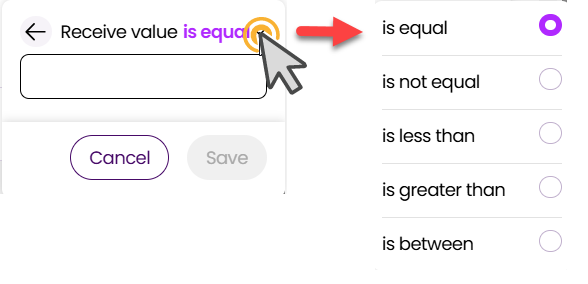
-
Depending on the column, either enter or select a value.
-
Select Save to apply the filter.
Select
xon a filter to remove it.
Updated 4 months ago