
Reporting
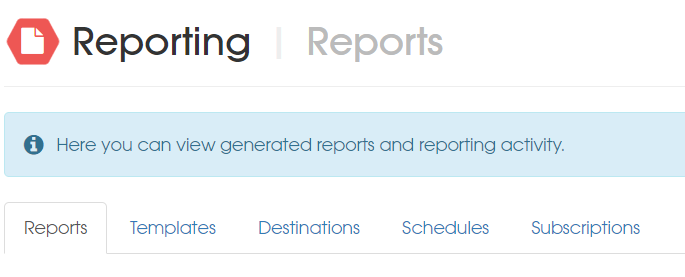
The Merchant Administration System supports reporting on your data.
It enables your business to automatically generate reports in multiple formats and deliver them via SFTP or email to multiple recipients, providing your financial departments with all the information they need via a one-time setup.
Reporting environment
Our systems communicate externally to send files via SFTP. Add the following URL to your allowlist to enable communication:
UK Hub: sftp.vitessepsp.com
Overview
The following elements allow reports to be defined and their preferred delivery method configured:
Reports
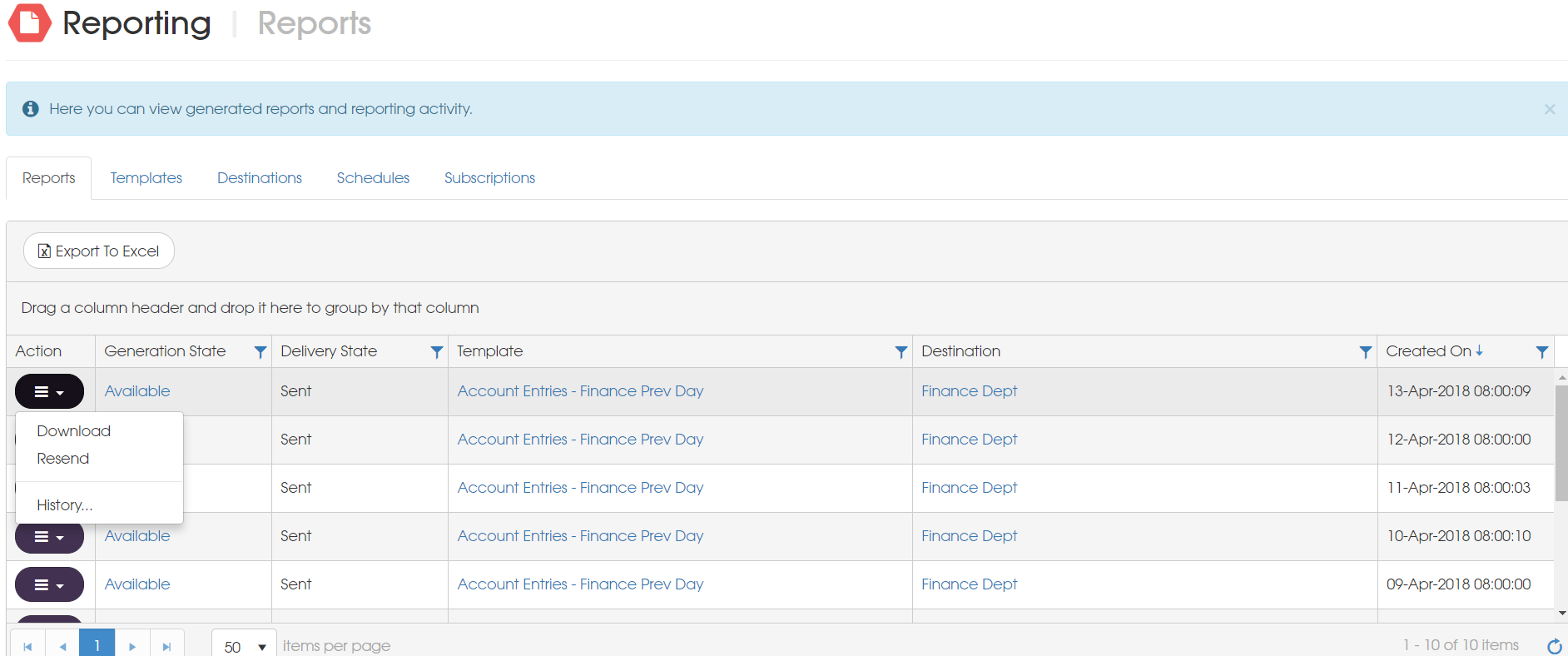
The reports tab shows all generated reports, whether they were ad-hoc or from a subscription. Reports can be downloaded, resent and also contains an audit history.
Templates
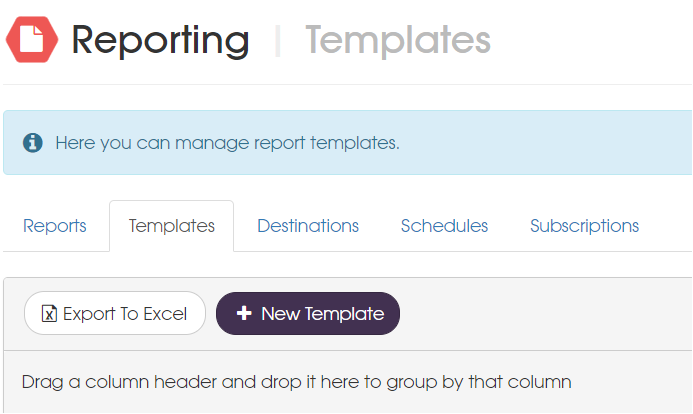
The templates tab shows all the report templates that have been configured, templates can be created, viewed, edited and deleted as well as options to run the template. An audit history is also available.
Destinations
The destinations tab lists all created destinations where the usual view, edit, delete and audit history options are available. New email or SFTP destinations can created and there is a test option to verify them. This defines where reports will get sent to.
Schedules
The schedules tab is where new schedules can be created and allow reports to be sent at specific times. Schedules can be viewed, edited, deleted and also had an audit history.
Subscriptions
The subscriptions tab is where all the above comes together, allowing the report template, format, destination and schedule to be defined. These can also be executed ad-hoc and has the usual view, edit, delete and audit history options.
Report Templates
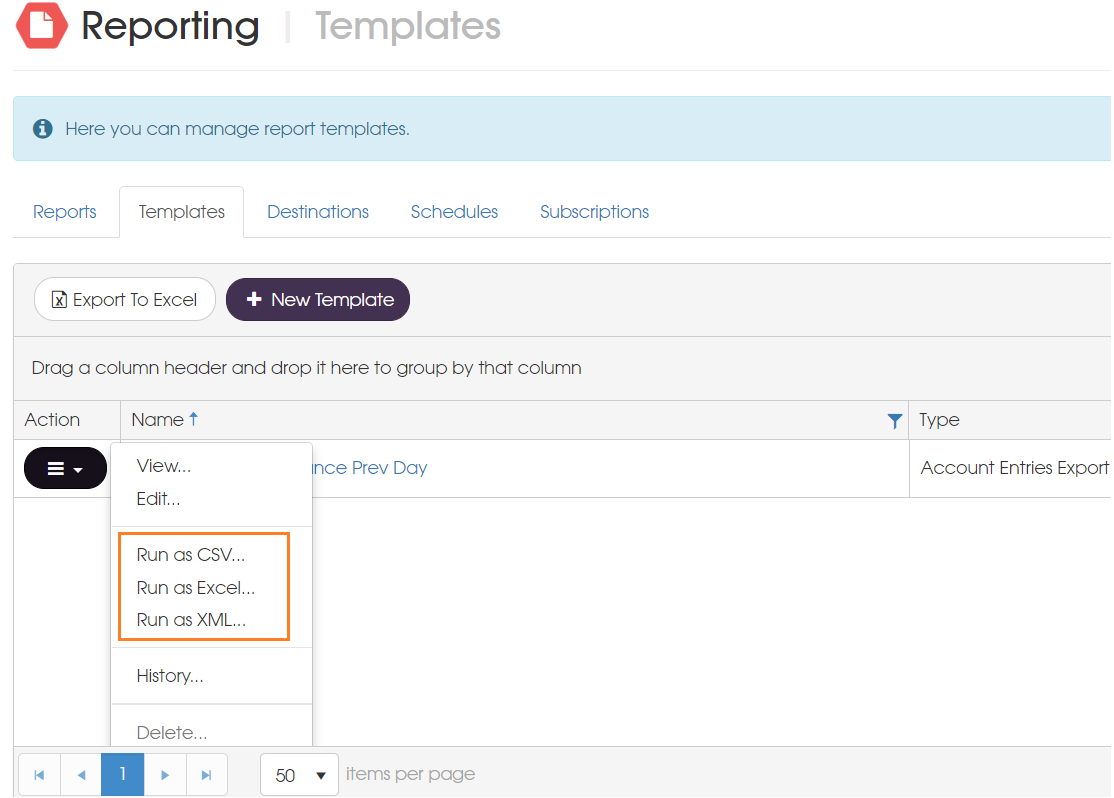
In the templates area you can view, edit, delete and create template types as well as view their history and run them in different formats for ad-hoc downloads.
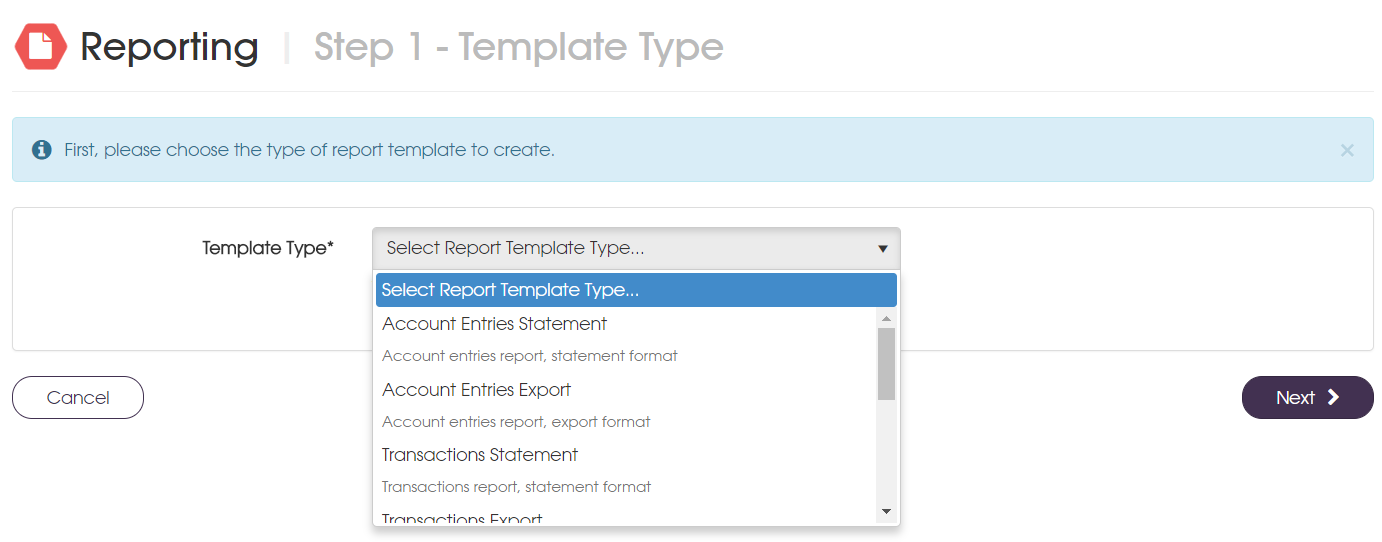
The different report types available to create are:
- Account Entries – shows all account entries across the selected accounts
- Latest Account Balances – shows the balances of the selected accounts
- Range Account Balances – shows account balances for each day over a date range
- Transactions – shows detailed transaction information
There are two styles that report types fall into and each have associated formats
- Statement – PDF, Word Document, Excel Document
- Export – CSV, Excel, XML
Create a Report Template
From the navigation bar the Administration menu item is where Reporting can be found. On the templates tab a new template can be created.
A report template type can be selected from the drop down, these will include statement and export types.
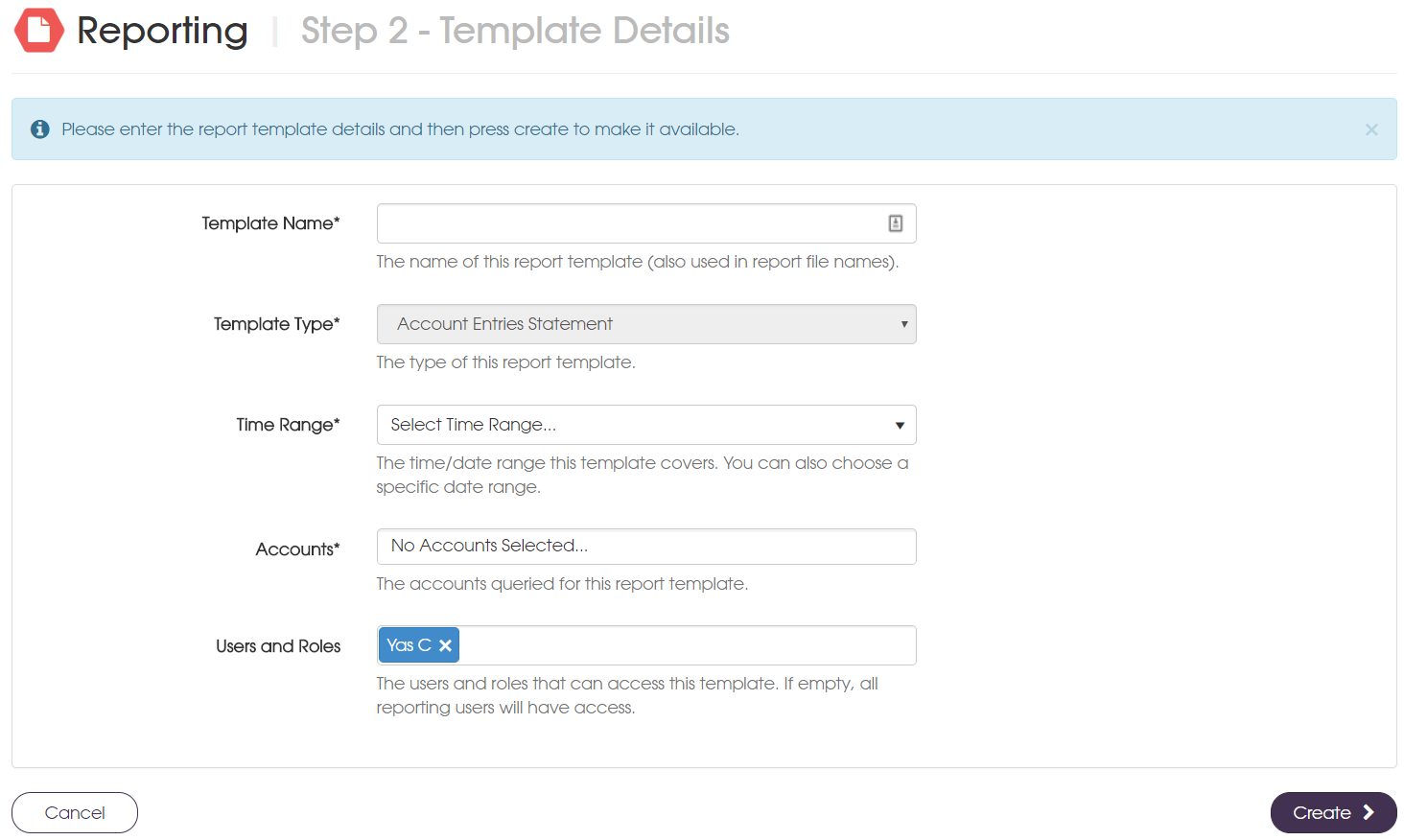
You will then be able to fill out the template details. Different time ranges can be selected as well as custom time range.
Specific accounts can be chosen to report and there is also a security features where report templated can be locked down on a user and role basis. See section 7 for more details.
Run ad-hoc Report
Once a template has been set up, you can run the report on an ad-hoc basis without needing to setup a full subscription. The options will be available in the associate file formats.
Report Destinations
In the Destinations area you can create, edit and view destinations as well as viewing the history and testing a destination. SFTP and email are the two types of destinations that can be created and then associated with a schedule to receive reports. A single instance of a destination can be used for multiple schedules.
Email Destinations
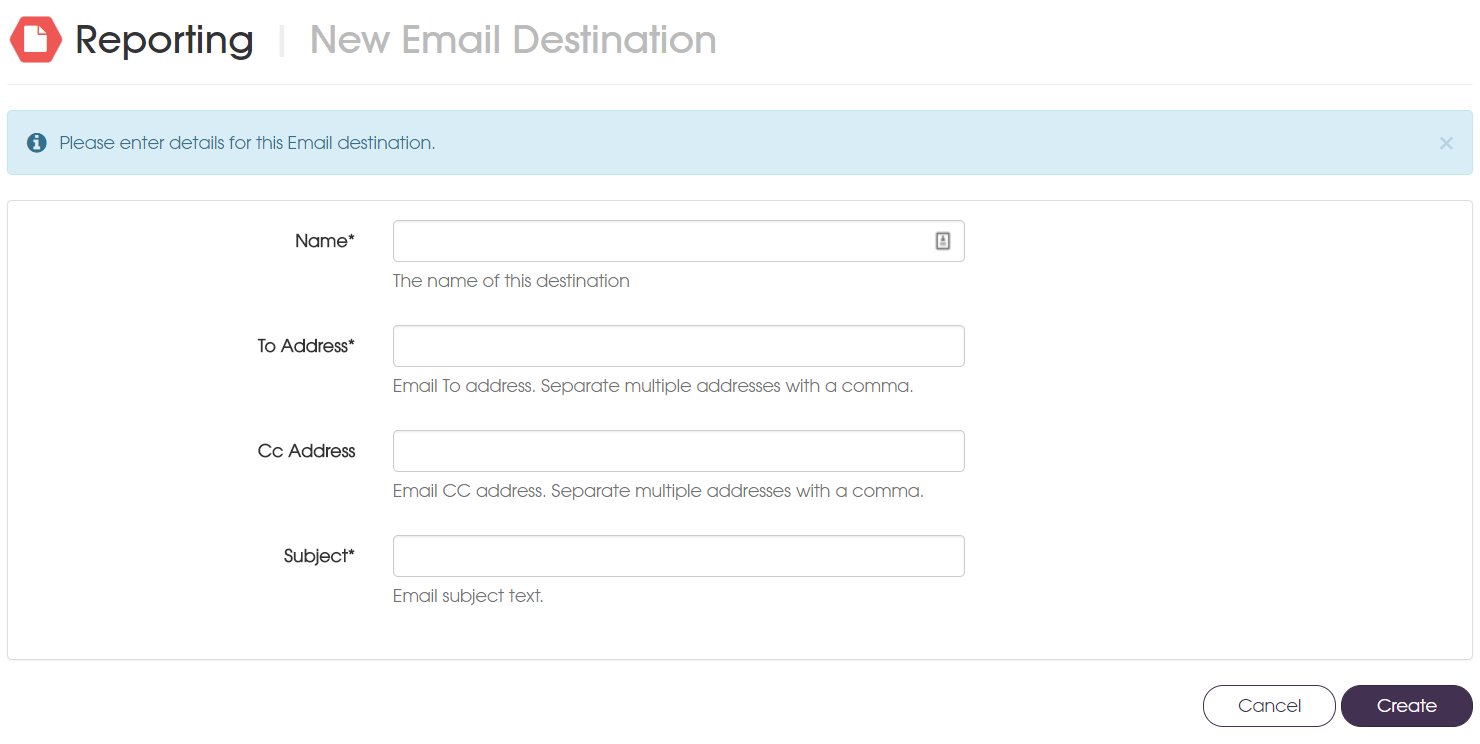
Reports can be sent to multiple email addresses and allows a specific subject line to be set. Please ensure that email addresses are entered correctly to ensure reports are sent as expected.
Email is not a secure delivery mechanism for sensitive data. Your reports may contain sensitive data to you or your customers. We advise that delivery of reports via SFTP is the safest option.
Create an Email Destination
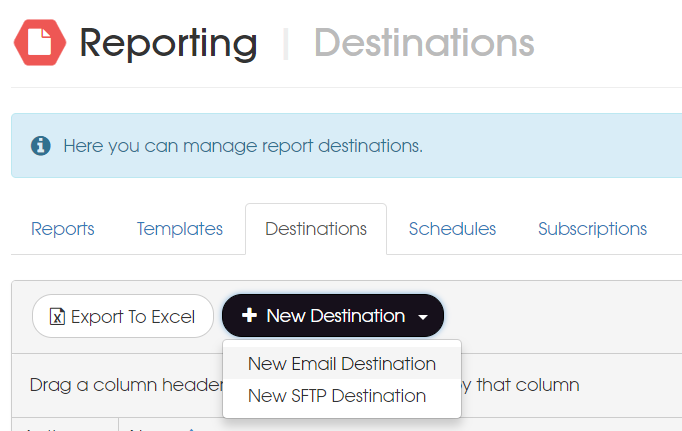
From the Destinations tab on the Reporting page, a new email destination can be created.
Email specific details can be entered and allows for multiple to and cc email addresses to be set, this is done by separating each email with a comma. The email subject can also be set.
SFTP Desinations
Reports can be sent to SFTP destinations and is the recommended way of doing so as it’s more secure than email. Please ensure SFTP server details are entered correctly, especially passwords to avoid failed report delivery. There is an option to test a destination which is discussed further below.
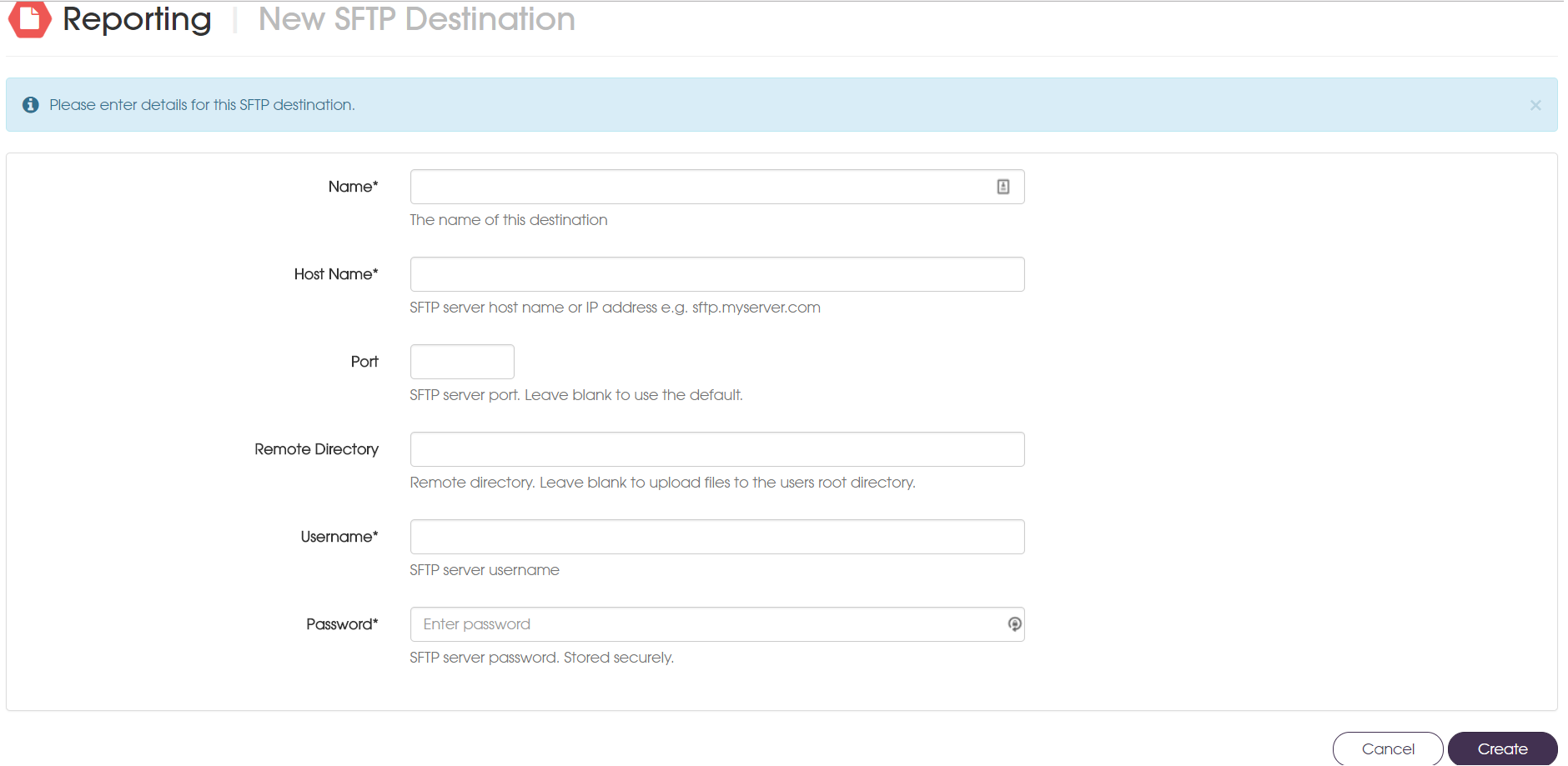
Create a SFTP Destination
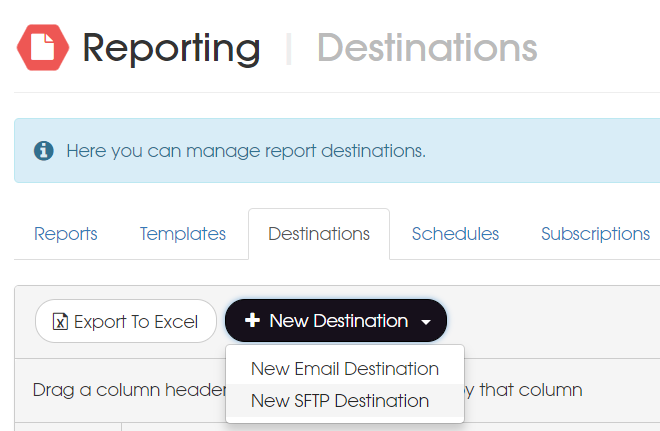
From the Destinations tab on the Reporting page, a new SFTP destination can be created.
SFTP specific details can then be entered, a sub directory can be specified where reports can be sent to. The password entered is stored securely in our database.
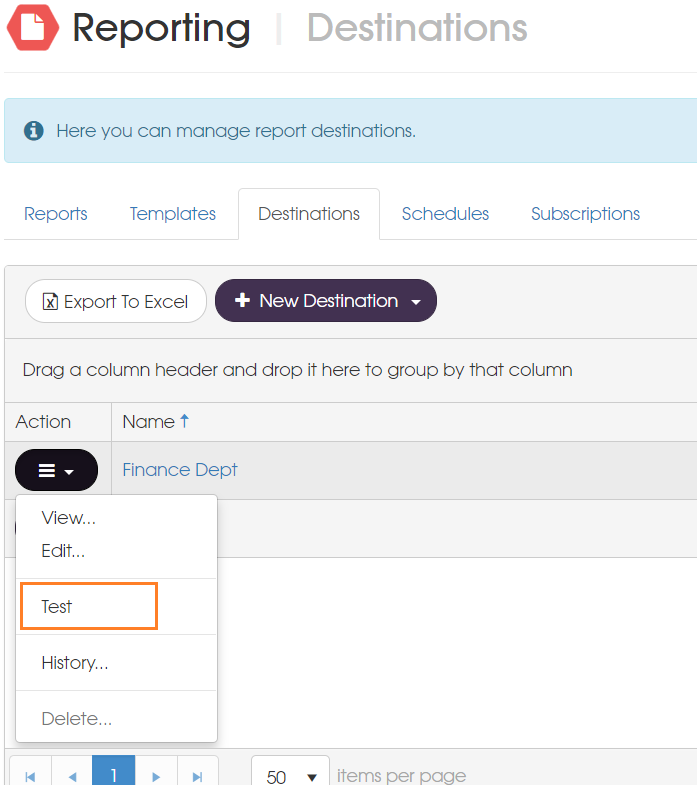
Test a Destination
Destinations can be tested before configuring subscriptions, a small text file is sent to the configured destination and the result can also be viewed in the audit history.
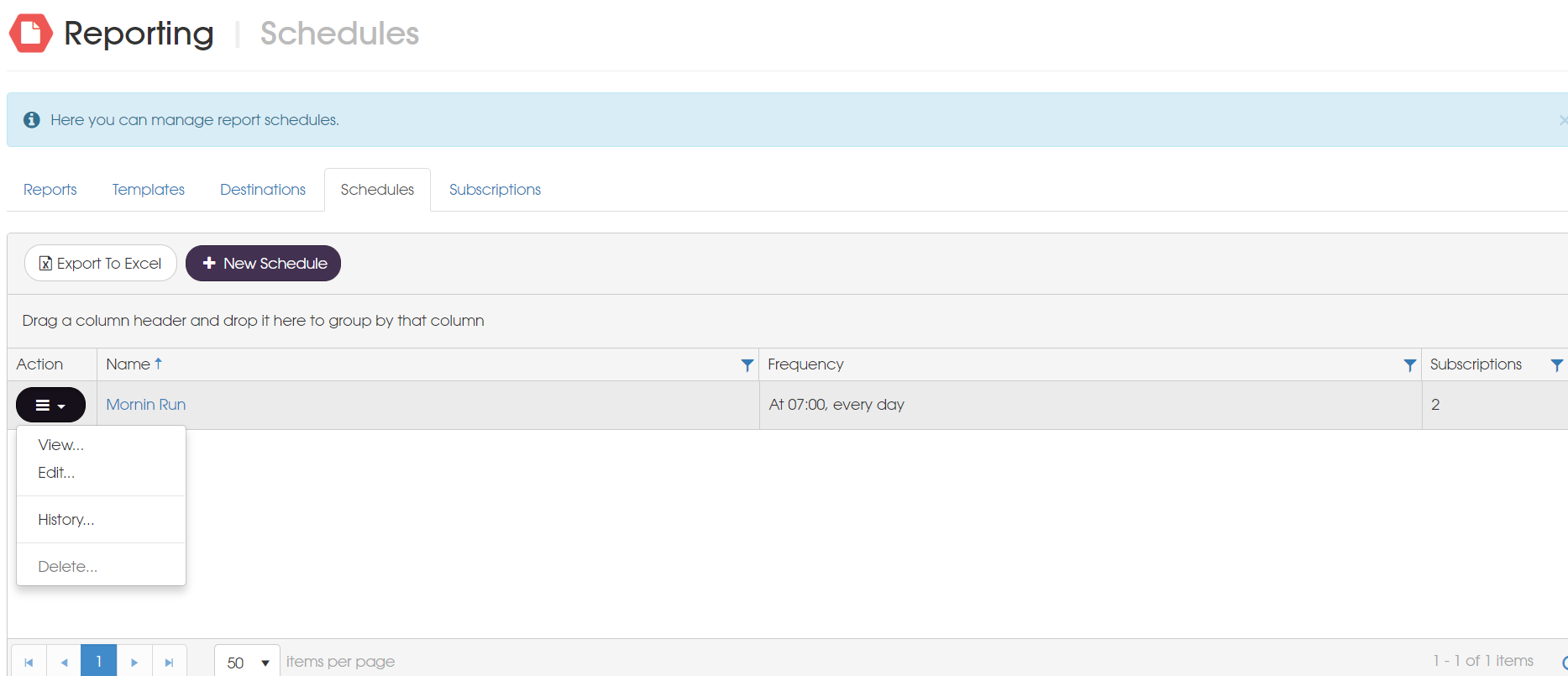
Report Schedules
In the schedules areas you can create, edit, view and delete schedules as well as viewing the audit history. Schedules allow you to specify how frequently reports are run automatically and can be daily, weekly or monthly at any time day (UTC time).
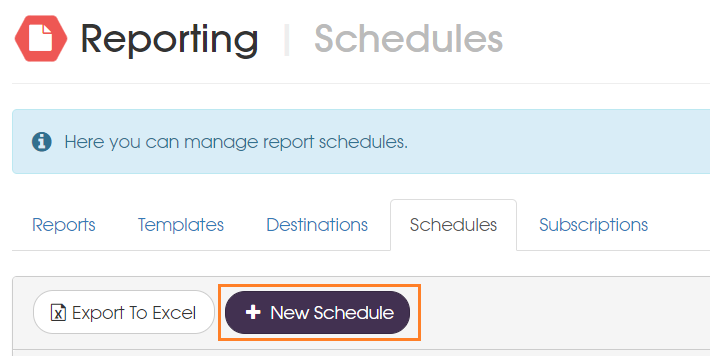
Create a new Schedule
From the Schedules tab on the Reporting page, a new email destination can be created.
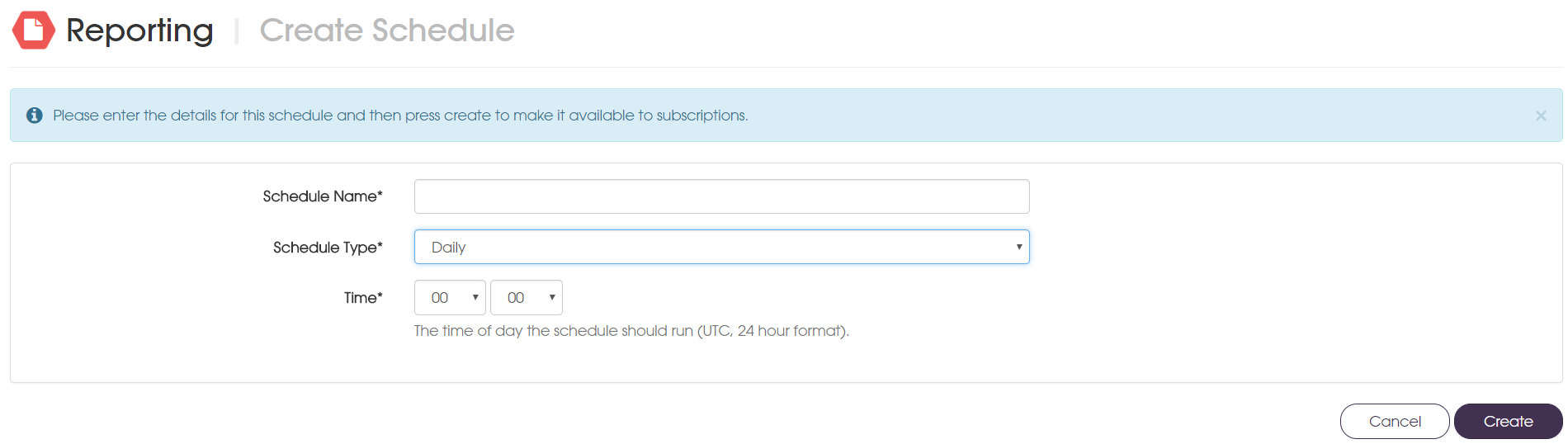
- The schedule details can then be entered. Different time options are available and can nicely link with the range that has been configured for a report:
- Daily [time of day] – e.g. configuring a template range of Day – Yesterday and specifying a daily schedule at 00:00 UTC time
- Weekly [day of week, time of day] – e.g. configuring a template range of Day – Previous 7 days and specifying a weekly schedule on a Monday at 00:00 UTC time
- Monthly [day of month and time of day] - e.g. configuring a template range of Month – Previous month and specifying a monthly schedule on the first day of the month
Report Subscriptions
In the Subscriptions area, you can create, view, edit and delete subscriptions as well as executing on demand and viewing the audit history.
Create a new Subscription
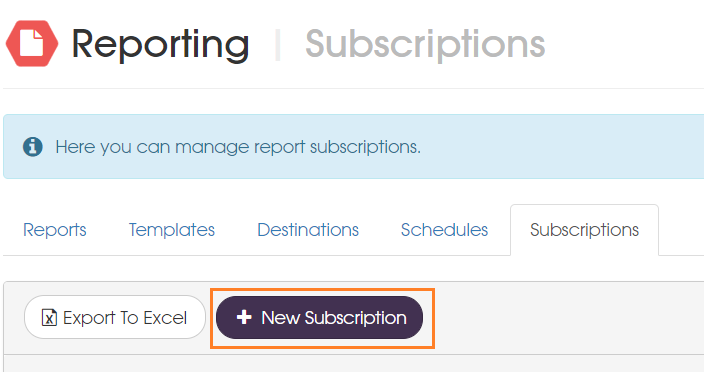
From the Subscriptions tab on the Reporting page, a new report subscription can be created.
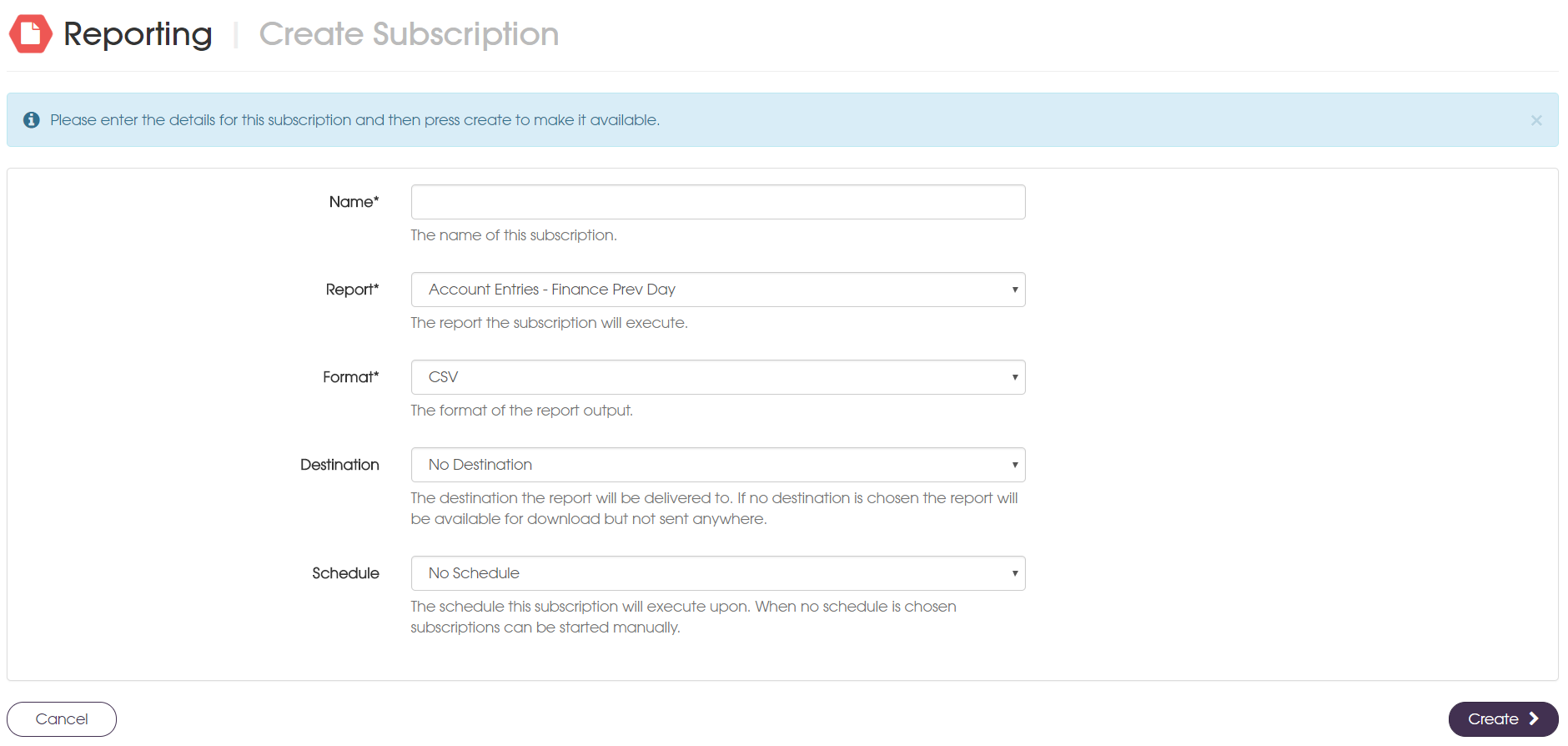
The schedule details can then be entered. A report template, destination and schedule as well as a chosen file format can be configured. Formats depend on the type of report selected.
Execute a Subscription
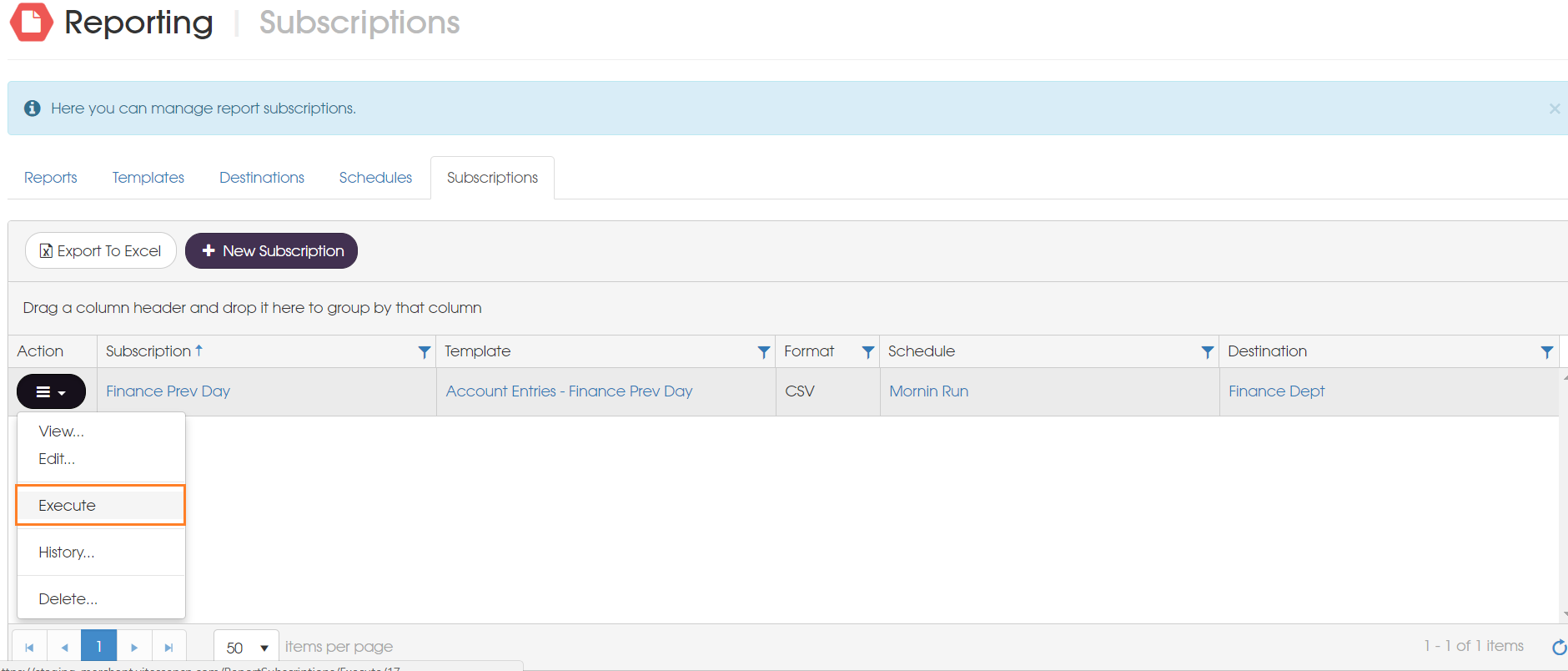
A subscription that has been created can be executed on an ad-hoc basis if needed. The subscriptions grid shows the parameters of each subscription.
Reports View
The reports tab shows all instances of reports that have been run either on demand or as part of a schedule. Here a report instance can be downloaded or resent if the instance was from a subscription. The audit history can also be viewed for each report instance.
Please note that there is retention policy of 30 days on generated reports. Reports older than the retention policy will no longer be available for download.
Security
The reporting feature and assets within it can be secured for access to specific users and roles.
User Roles
There are four user roles that provide who can manage reporting and also provide a more granular restriction for each feature of reporting i.e templates, destinations, schedules and subscriptions. If a user has the Admin role then they will be able to manage all aspects of reporting.
Under Administration -> Users, each user can be assigned specific roles for reporting.
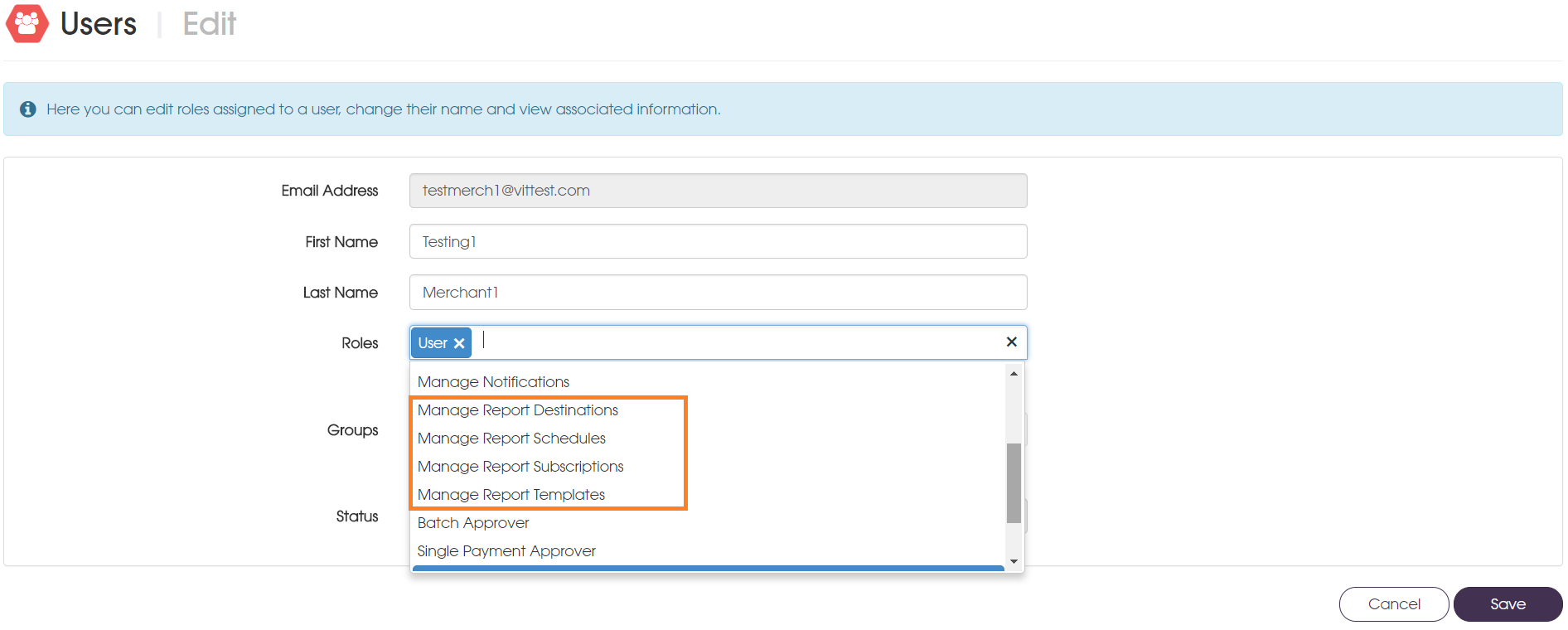
- Manage Report Destinations – users can create, view, edit and delete destinations
- Manage Report Schedules – users can create, view, edit and delete schedules
- Manage Report Subscriptions – users can create, view, edit and delete subscriptions
- Manage Report Templates – users can create, view, edit and delete templates
Secure a Report Template
It is possible to restrict access to individual Report Templates to specific users or roles. This means only specified users (or users with the appropriate roles) can manage a report template or view the output from it. This also affects any associations the reports have with destinations, schedules and subscriptions.
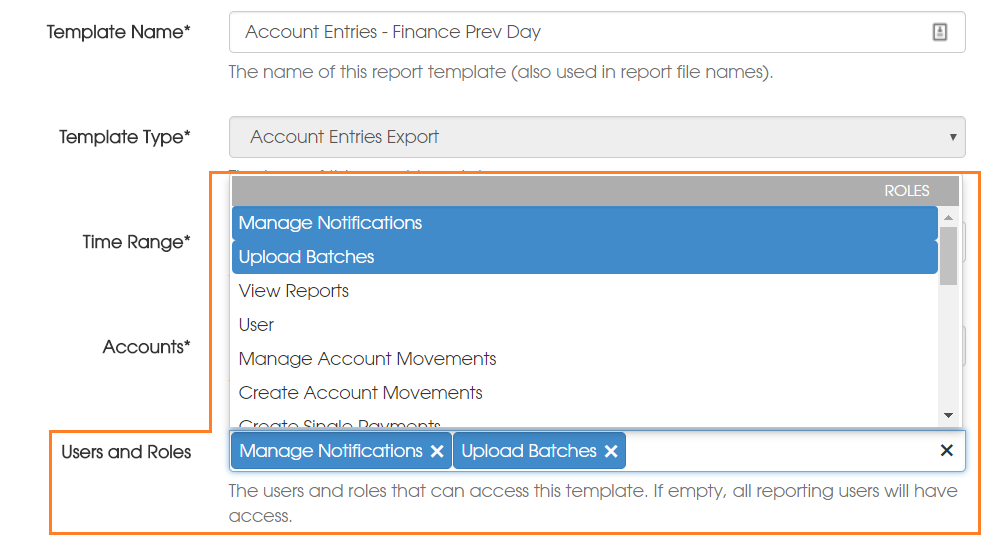
When creating a template users and roles can be set from the Users and Roles drop down. A combination of users and roles can also be configured.
Roles:
Users:
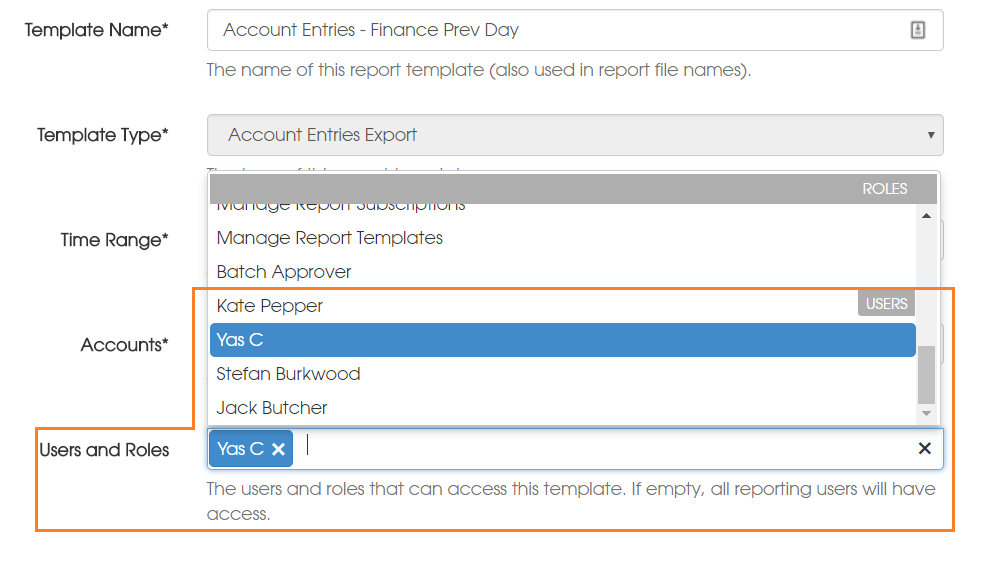
Templates are secure by defaultWhen you create template, the default is to give only you access. If you want to give other users access you'll need to add them to the Users and Roles access list too.
A word or warning - if you add others and remove yourself you will lose access!
Effects of Secured Templates
Securing a template can affect access to other reporting data.
Effects on Generated Reports
If a template that has been secured has been generated it will show under the Reports tab but will not show for any user that does not access to that report.
Effects on Destinations
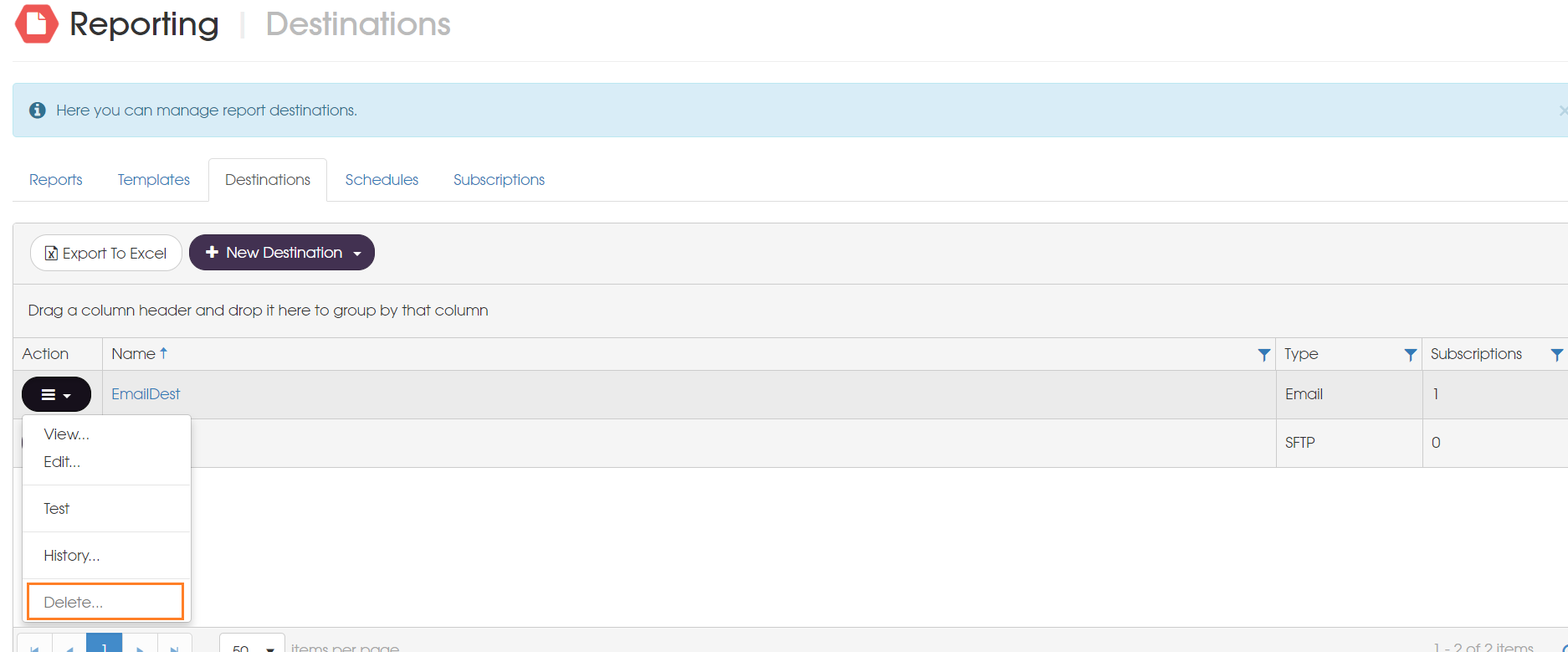
If a report template that is secured is associated with a destination via a subscription, only users with access to that report can edit or delete the destination. Users without access can only view.
Effects on Schedules
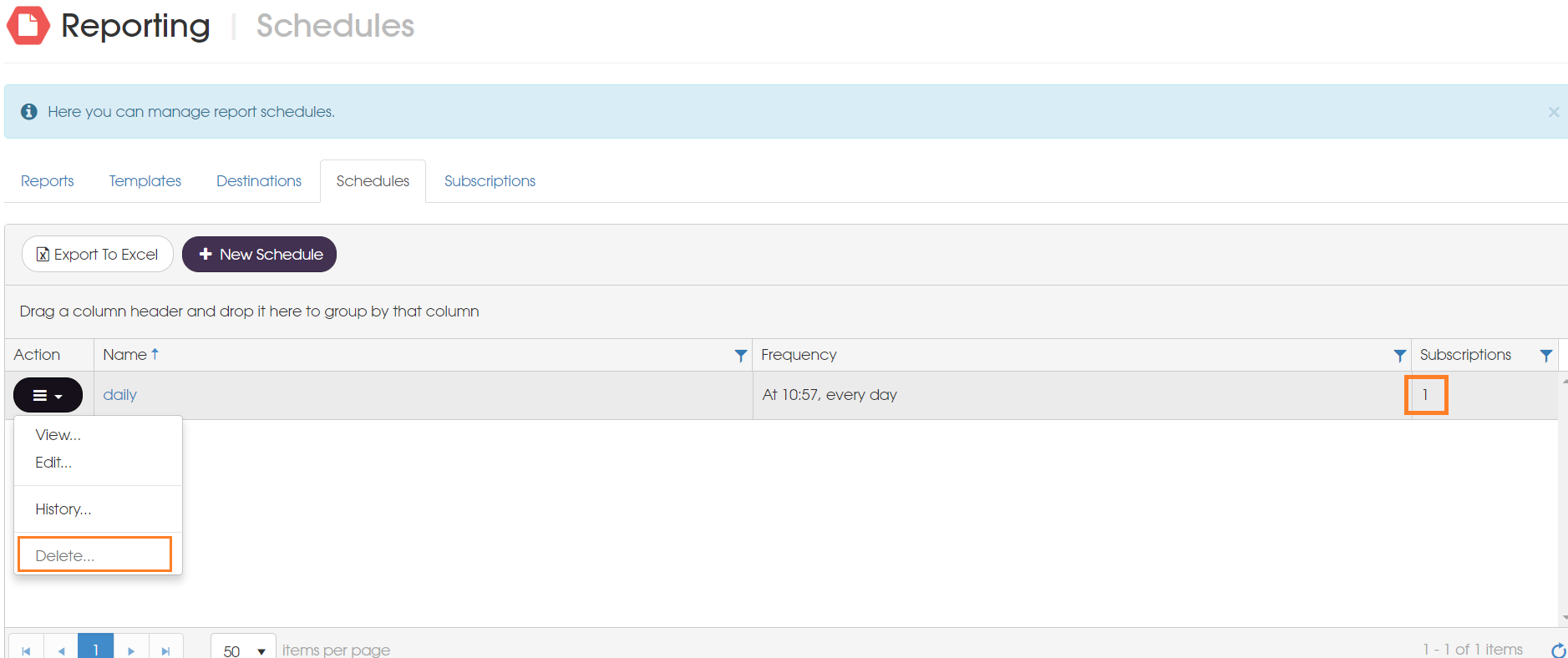
If a report template that is secured is associated with a schedule via a subscription, only users with access to that report can edit or delete the schedule. Users without access can only view.
Effects on Subscriptions
A subscription with a report template that has been secured will only be displayed on the subscriptions tab to users with access, users that do not have access will not see the subscription in the grid.
Updated 3 months ago