
Manage users: MAS
Use MAS to create users and control their system access by assigning roles and groups.
Only users with the Admin role can create and manage users in MAS. See User roles.
Create a user
If you are using SSO, ensure that the user exists in your identity provider before creating them in MAS.
-
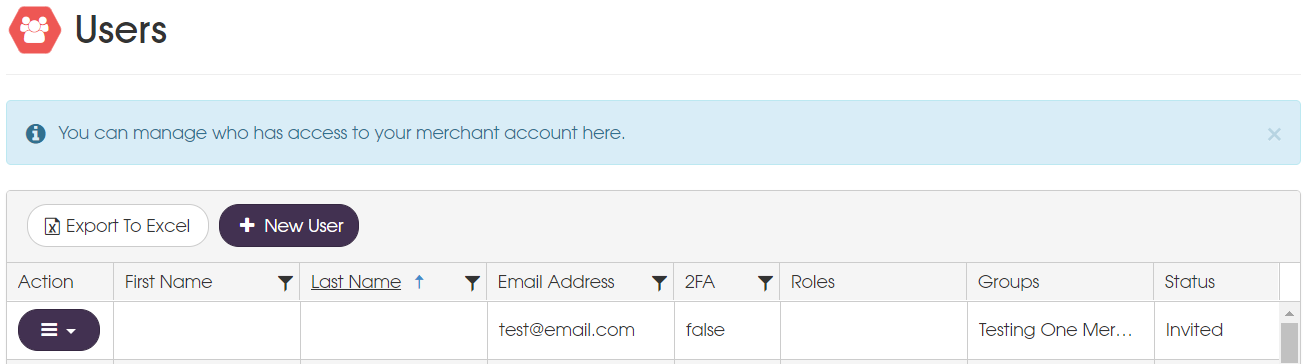
Go to Administration > Users.
-
Select New User.
-
Enter the user’s email address.
The user is added with status Invited and receives an email to complete registration.
Complete registration
The user follows the email link to register and confirm their account.
- If using SSO, no password is required
- If the link expires, the user can resend it from Administration > My Account
After confirmation, the user status updates to Active.
Manage users
You can add user details and assign roles after they have registered.
-
Go to Administration > Users to view and manage users.
-
Select Action alongside the user whose details you want to manage.
The following menu appears: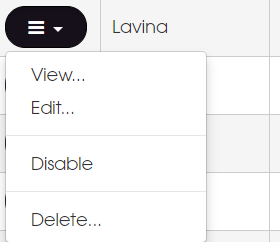
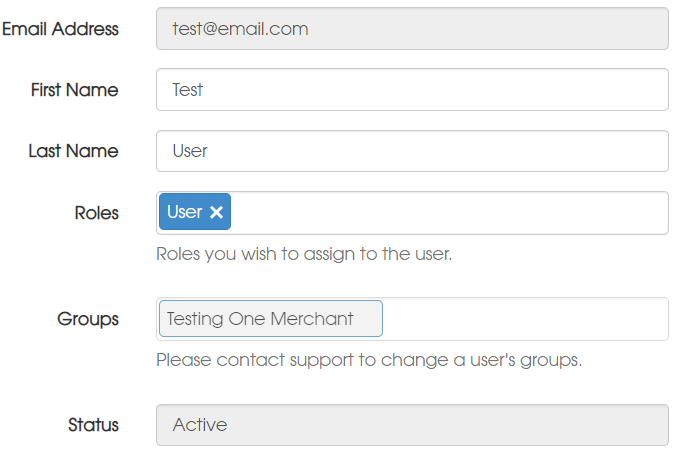
Edit a user
Update user details or assign roles.
Disable a user
Disable a user to temporarily remove access.
Delete a user
Delete a user to permanently remove them from the system.
User statuses
Users have a status that indicates whether they can access MAS.
Status values
| Status | Description |
|---|---|
| Invited | The user was created but has not yet completed registration. |
| Active | The user has completed registration and can access MAS. |
| Disabled | The user cannot access MAS because of administrative action. |
| Locked out | The user has exceeded the allowed number of failed login attempts and is temporarily unable to access MAS. The user must wait for the lockout period to expire, or an administrator can unlock the user. This status does not apply to SSO users. |
| Pasword expired | The user cannot access MAS because their password has expired. This status does not apply to SSO users. |
| Pending reset | The user must reset their password before they can access MAS. This status does not apply to SSO users. |
Status transitions
User status changes based on actions and events:
- Invited → Active when the user completes registration
- Active → Locked out after repeated failed login attempts, the user will receive an email specifying when they can access the system again
- Active → Disabled if the account is manually disabled
- Active → Password expired if the account password needs resetting
- Disabled → Pending reset when a password reset is triggered, unless the user is an SSO user, in which case the status will return to Active
- Locked out → Active when the locked out time period has expired, the user is returned to an active state and can now log into the system
- Password expired → Active after the user resets their password
- Pending reset → Active after the user resets their password
Managing user access
Administrators can:
- Disable or enable users
- Delete users
- Unlock accounts
When administrators re-enable non-SSO users, this forces the user to reset their password.
Updated 3 months ago