
Bulk fund accounts (Vitesse online)
Fund multiple Vitesse accounts with a single bank transfer to a Vitesse omnibus account, then tell Vitesse how to allocate the funds using Vitesse online.
Bulk funding is available for the UK Hub only.
You can fund Funding accounts and Standard accounts, not Payment accounts, as they draw funds from funding accounts. For more information, see Account types.
Get your settlement instructions
Contact Support for a list of omnibus account settlement details.
Each currency has its own account details.
Send your bank transfer
Using the SSI provided by Support, send a single transfer for the total amount you want to allocate.
When sending funds via SWIFT, select OUR as the fee type. This ensures Vitesse receives the full funding amount without deductions.
Banks may truncate payment references. We recommend you limit the payment reference to 18 characters.
Make a note of your exact payment reference. Vitesse uses the payment reference to identify the bank transfer.
An incorrect payment reference may delay funding or require manual investigation.
Submit allocation instructions
Use Vitesse online to tell Vitesse how to allocate the bank transfer across your accounts.
-
Login to Vitesse online.
-
On the Treasury > Funding instructions page, select Provide funding instructions.
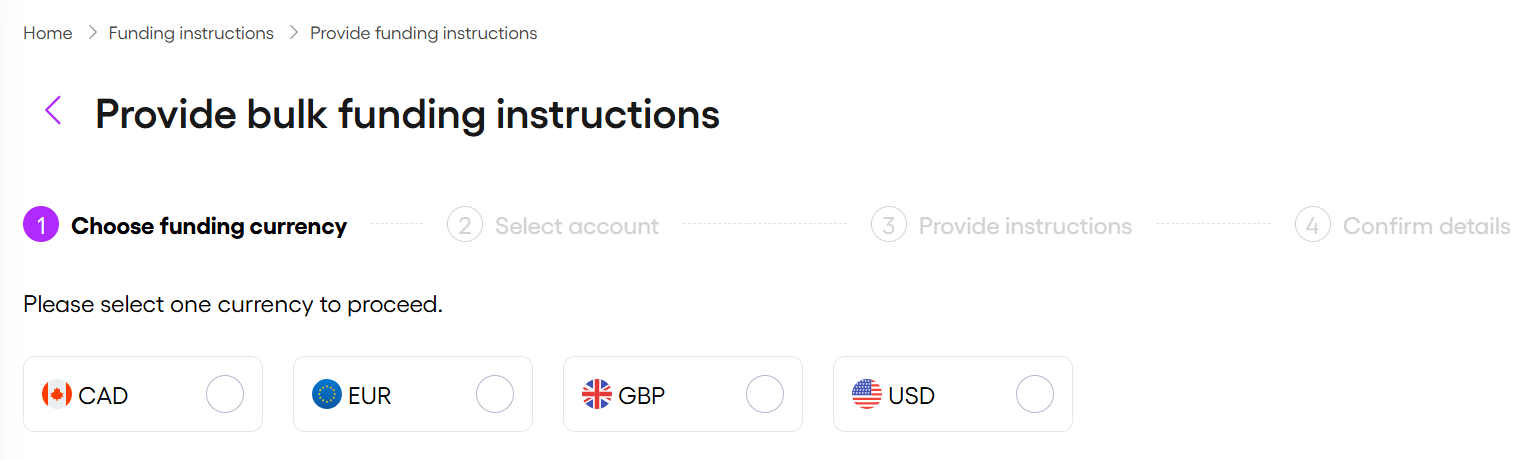
Creating funding instructions involves multiple steps. You can return to any completed step using the navigation at the top of the screen.
Choose funding currency
- Select the currency that matches the bank transfer currency.
- Select Next
Select account
- Select all the Vitesse accounts you want to fund.
- Select Next.
Provide instructions
The Total payment and overall Payment Reference in your funding instructions must exactly match the bank transfer. This ensures the instructions are linked to the correct payment.
Each line item becomes a separate funding instruction with its own payment reference for tracking and reconciliation.
-
Enter the Total payment used for the bank transfer.
-
Enter the Payment Reference used for the bank transfer.
-
Enter the amount you want to fund per selected account. You can do this in two ways:
Single entry
Enter the funding amount next to each account.
For each entry, enter a payment reference.Split entry
Select Split to allocate multiple funding amounts to the same account.
For each split:- Enter the amount
- Enter a payment reference
References should describe the purpose of each funding allocation.
-
Select Add payment to include additional lines.
The total amount for the account is automatically calculated from the split amounts.
-
Select Add an account to include additional accounts for the selected currency.
This option is unavailable after you've selected all accounts in the chosen currency.
-
If required, select
 to remove the payment or account.
 -
Confirm that the Total allocation equals Total payment (bottom left).
-
Select Next to continue.
Confirm details
Review the funding instructions before submitting them for processing.
- Review your full instructions.
- If required, select Back to make changes.
- Select Confirm & Submit to submit the funding instructions to Vitesse.
Funding instruction example
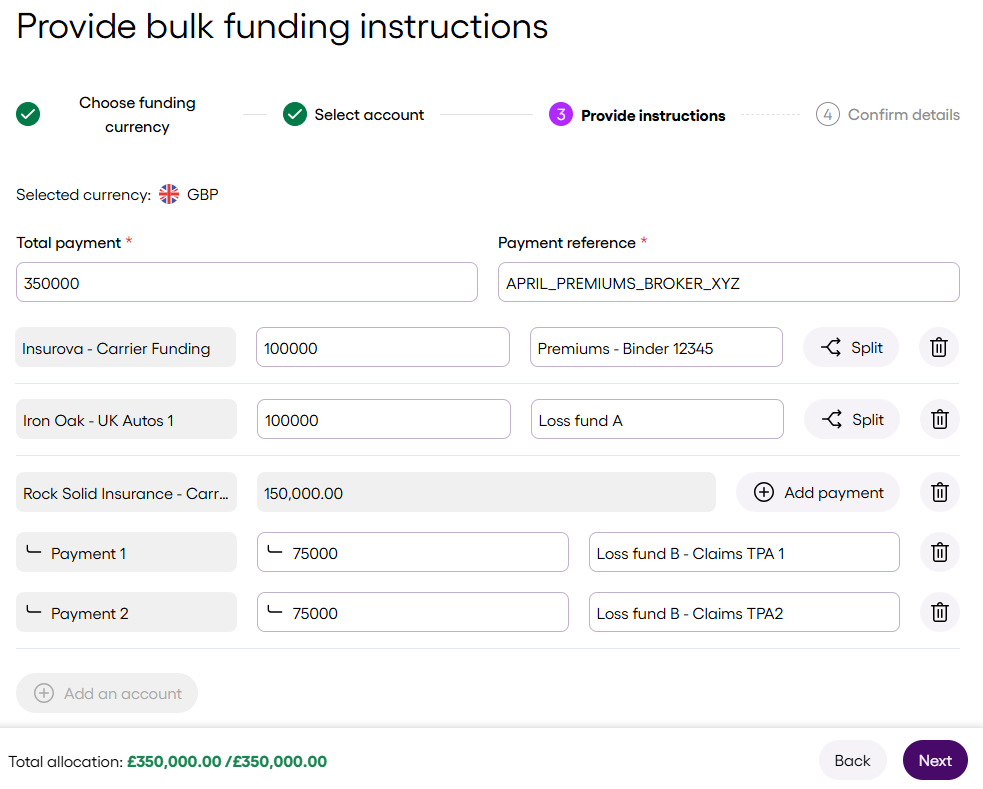
In the following example, APRIL_PREMIUMS_BROKER_XYZ describes the bank transfer reference for the total payment.
The funding instructions may also include the following references for funding selected accounts:
Premiums - Binder 12345Loss fund ALoss fund B, which is further split into:Loss fund B - Claims TPA 1Loss fund B - Claims TPA 2
What happens next?
Vitesse matches your funding instructions to the incoming bank transfer using the payment details you provided. Once matched, Vitesse allocates the funds across the accounts according to your instructions.
Missing funds
If you cannot see expected funds after the applicable processing time, contact Support.
Vitesse processes omnibus funding during UK business hours, and allocation can take up to one business day.
Updated about 2 months ago