
Manage users
Use Administration > User Management to manage your users and their access to Vitesse.
The Users page displays all users in your organisation and their current status. You can search for existing users, manage existing accounts and invite new users to your organisation.
When you invite a user, you assign one or more roles that determine the permissions they will receive after activating their account.
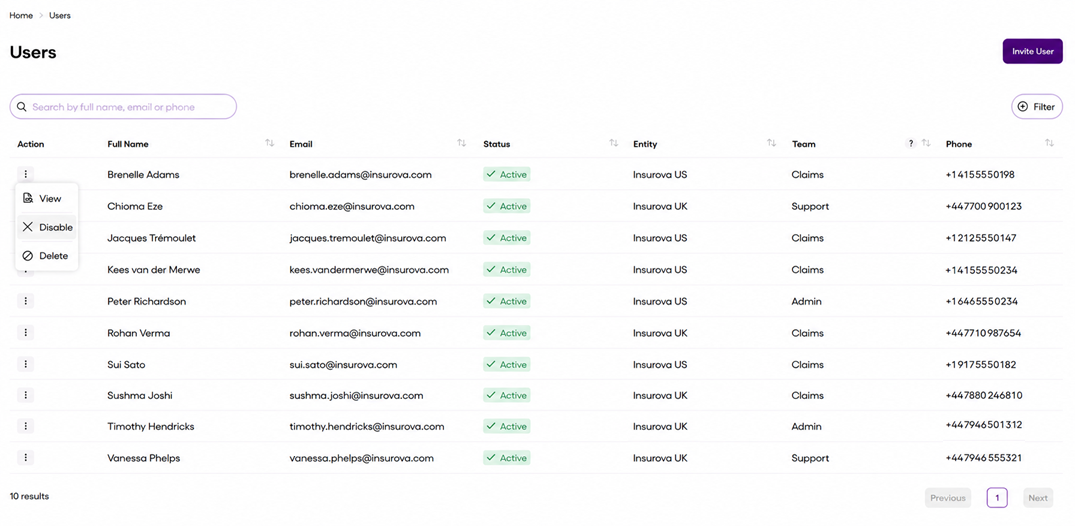
Use Filter and Customise above the Users list to sort the list and customise the column appearance and order.
Invite a new user
-
On the User Management page, select Invite user.
-
Enter the User details.
-
Use the search and filters to find the required Roles, then select the checkbox alongside each role you want to assign.
See below for more information about filtering roles. -
Select Send invite.
The user will receive an email containing instructions to activate their account.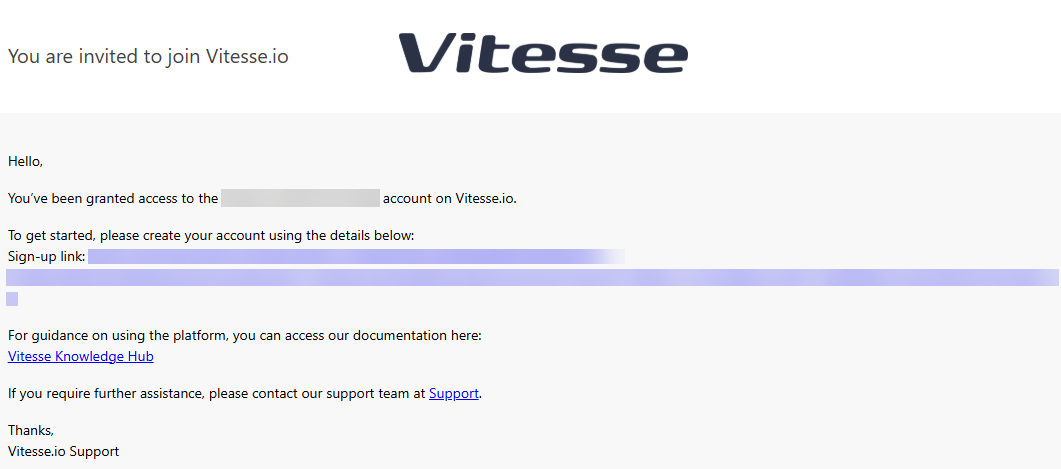
The invitation remains Pending until the recipient accepts the invitation and completes their account configuration. After they have activated their account, the user appears as an Active user in the Users list.
Filtering roles
Use the filters to quickly find the roles you want to assign.
| Filter | Values |
|---|---|
| Application | Neither option – displays all roles vitesse.io – displays Vitesse online roles only MAS – displays Merchant Administration System roles only |
| Group | Filters roles by functional area, such as Access Management, Accounts & Entries, Payments, and so on. |
| Assignment | Neither option – displays all roles On – displays assigned roles only Off – displays unassigned roles only |
Updated 3 months ago