
Creating static authorization tokens
Your application must use an API token to integrate with Vitesse APIs. If you are implementing the Vitesse API for production use, you must use dynamic tokens. For more information, see Authentication.
For manual testing purposes, you can use a static token to access the API. Static tokens have a defined validity period and do not rotate automatically. You can copy the token and use it directly in API requests.
Access your static API token in MAS
To manage tokens, your user must have the Manage Tokens role.
Static tokens only work in the environment where they were created. For example, a Staging token won’t work in Live. Using the wrong token returns a
400 Unauthorizederror. Check the issuer (iss) claim to see the environment for a specific token. For more information, see Check that the API token is valid below.
-
Log in to the Merchant Administration System (MAS) using your credentials.
-
In the top navigation, go to Administration > API.
-
Select the Tokens tab to view all tokens for your merchant account.
From here, you can view existing tokens or create new ones, depending on your permissions.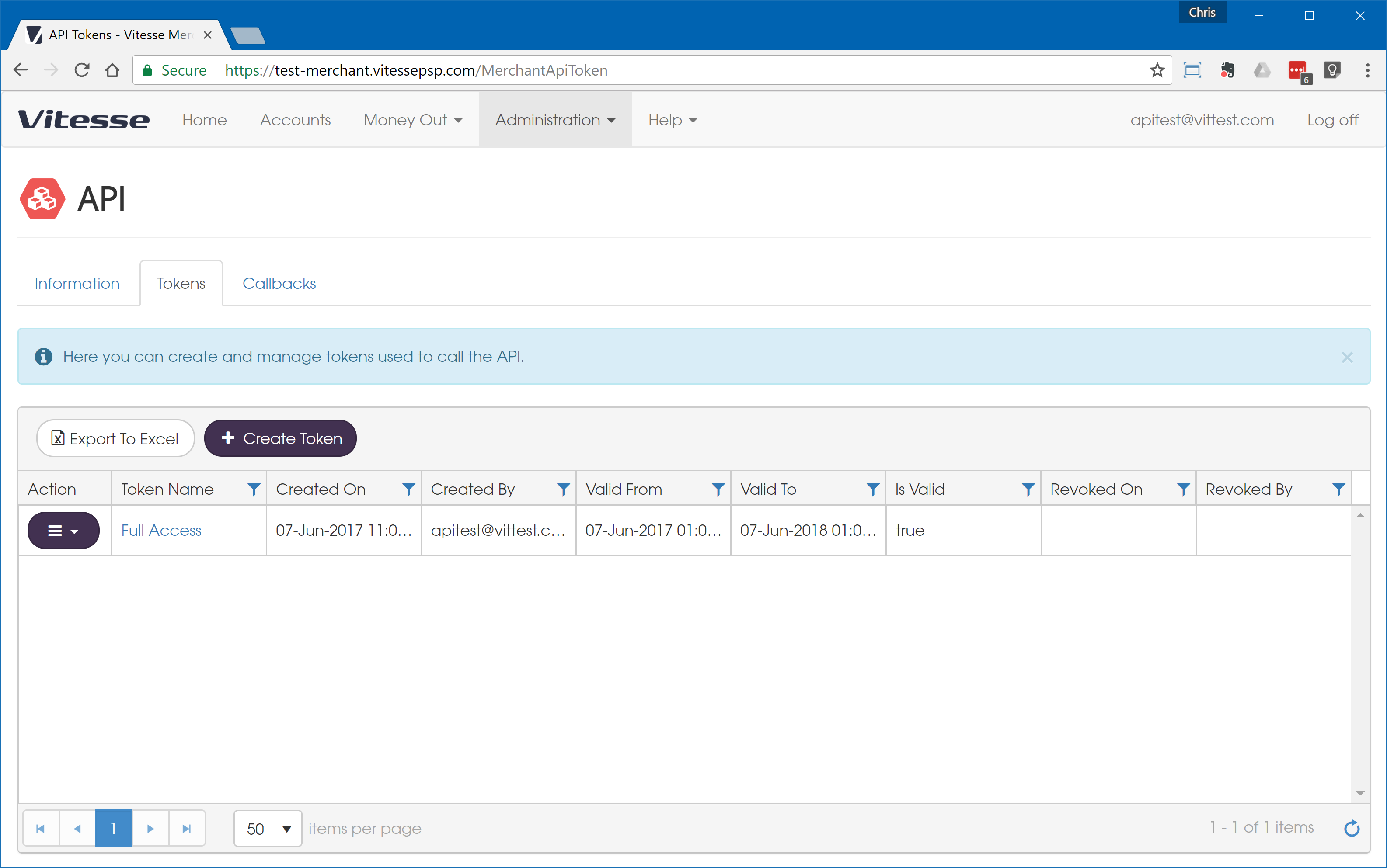
2. Create the static API token
As a best security practice, change tokens regularly, at least once a year.
- Select Create Token in the Tokens tab.
- Enter the following:
-
Token Name – A label to identify the token. This is internal only and does not affect functionality.
-
Token Validity Period – Set the start and end dates.
-
Token Roles – Select the roles that define the token’s API permissions.
For more information, see Roles.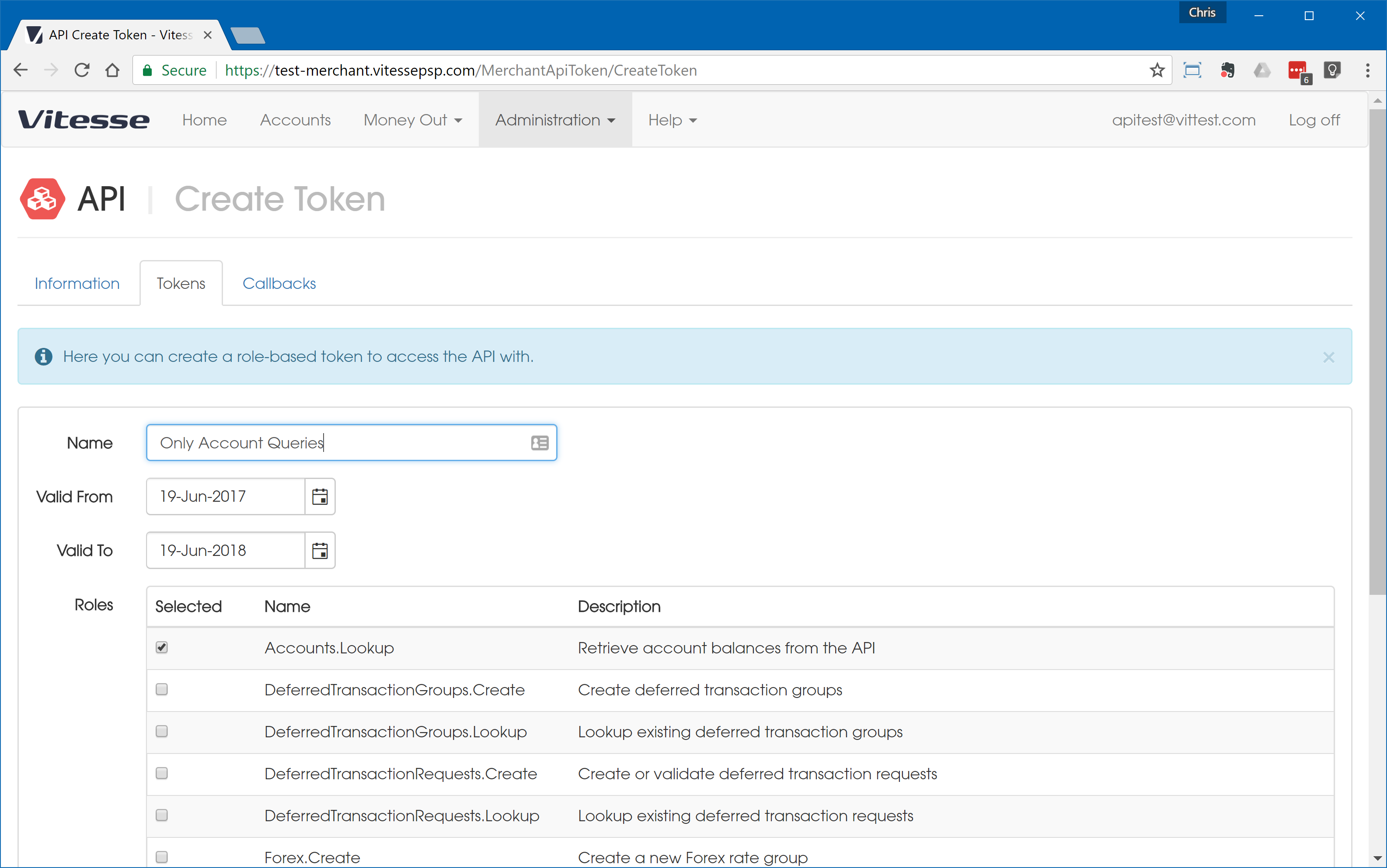
- Select Create to create the token.
3. View and apply the static API token
To use the static token in your application:
-
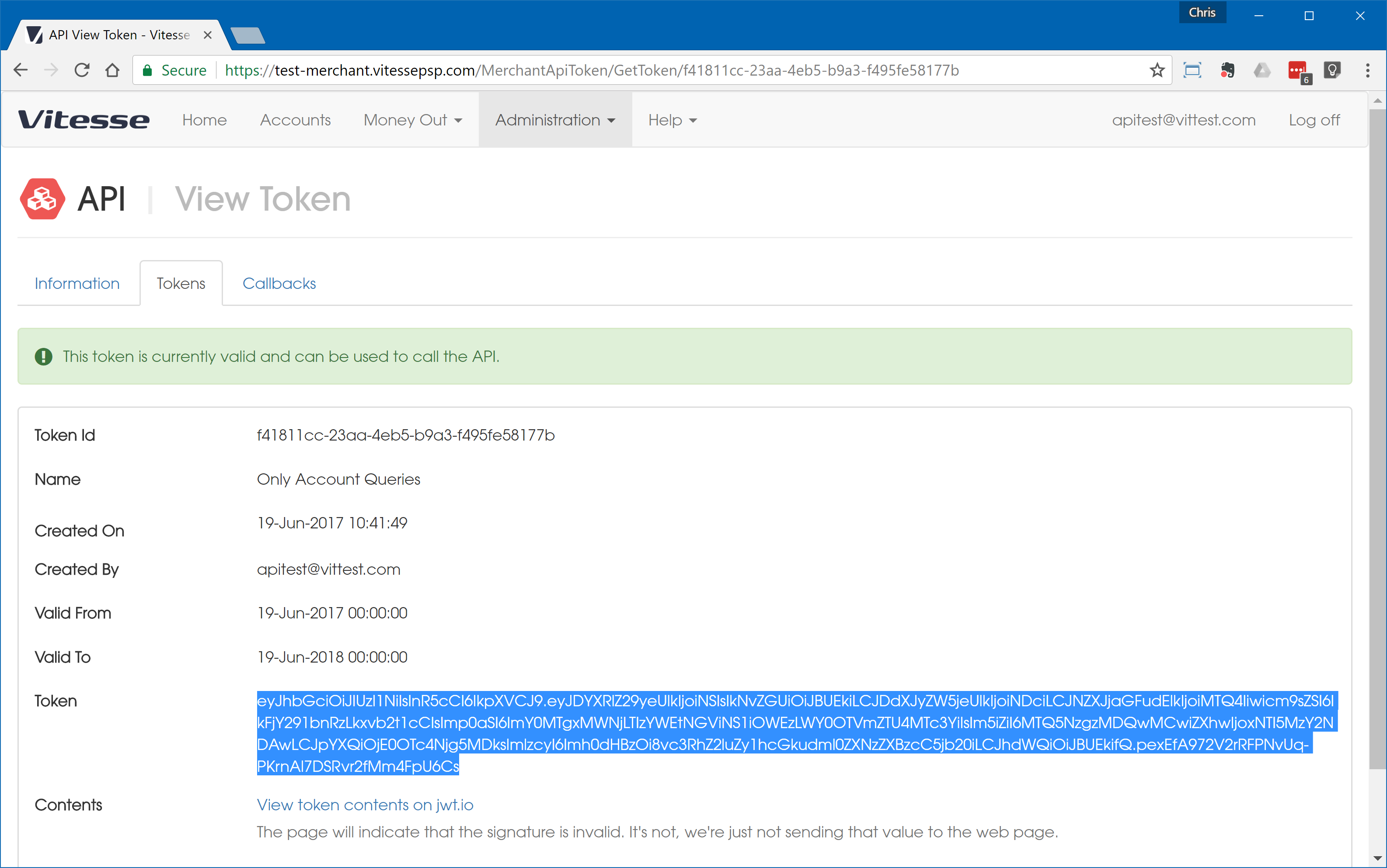
In the Tokens tab, select the token name to open its details.
-
Copy the token hash from the page.
-
Paste the token into your application’s configuration.
Make sure to store it securely and avoid exposing it in logs or front-end code.
Check that the API token is valid
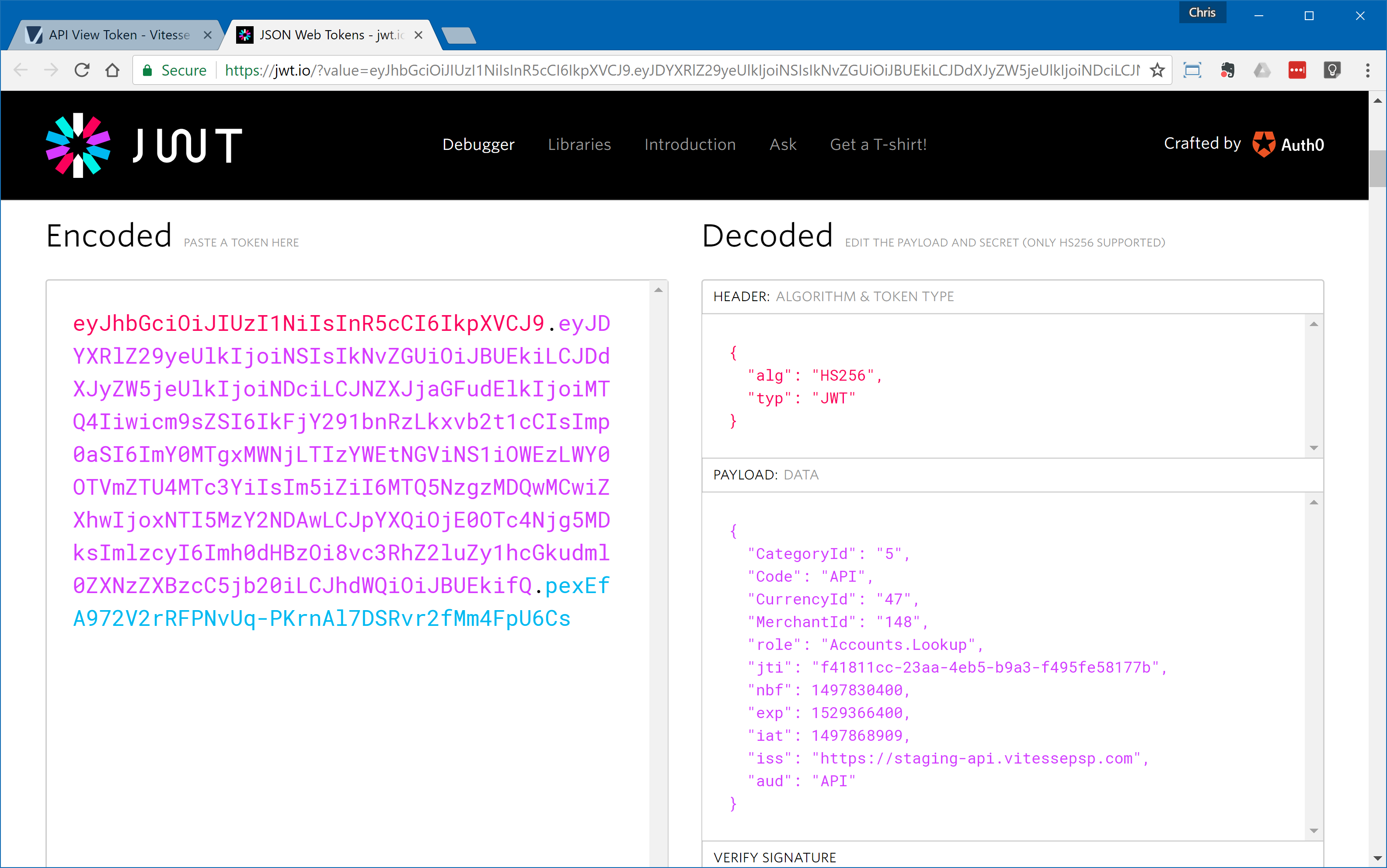
You can check whether an API token is valid using JWT Debugger. You can also confirm which environment it is intended for.
-
In the Tokens tab, select View next to the API token.
-
On the View Token page, select View token contents on jwt.io.
-
In the Decoded Payload section, check the
issfield to confirm the environment:- https://staging-api.vitessepsp.com → Staging
- https://api.vitessepsp.com → Live
Updated 2 months ago