
Provide funding instructions
Use Funding instructions to allocate a top-up payment across your accounts.
Vitesse will only process the instructions after receiving a payment with a matching payment reference. We send a confirmation email when processing is complete.
Get Started
-
On the Funding instructions page, select Provide funding instructions.
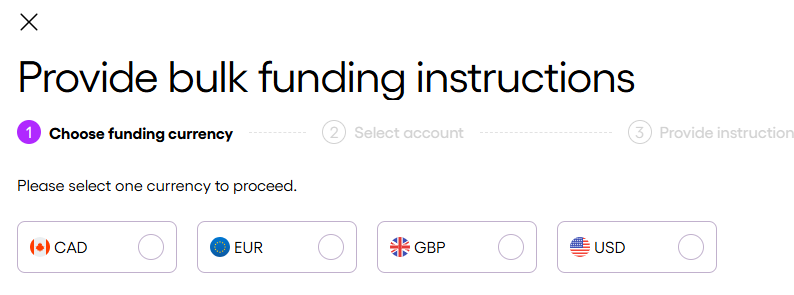
The funding instruction process has multiple steps. You can return to any completed step using the navigation at the top of the screen.
Choose funding currency
- Select the currency for the payment you're allocating in this instruction.
- Select Next.
Select account
You can only top-up accounts that share the same currency as your bank transfer. Select all the Vitesse accounts you want to top-up. There is no limit to the number of accounts you can include.
- Select one or more accounts.
- Select Next.
Provide instructions
Each line item is processed as an individual funding instruction, using the specified payment reference for journal entry creation. This ensures full traceability and supports detailed reconciliation.
-
Enter the Total payment, which is the sum total for the top-up.
-
Enter a Payment Reference, which must match the banking payment reference to ensure these instructions are linked to the correct payment.
-
Enter the amount you want to top-up per selected account. You can do this in two ways:
Single entry
Enter the top-up amount next to each account.
For each entry, enter a payment reference.Split entry
Select Split to enter multiple payments for a single account.
For each split:- Enter the amount
- Enter a payment reference
- Select Add payment to include additional lines
The total amount for that account is automatically calculated based on the sum of the separately allocated amounts.
-
Select Add an account to include additional accounts for the selected currency.
-
If required, select
 to remove the payment or account.
 -
Check that the Total allocation (bottom left) matches the Total payment.
-
Select Next to continue.
Confirm details
- Review your full instructions.
- If required, select Back to make changes.
- Select Confirm & Submit to submit the funding instructions to Vitesse.
To review previously submitted instructions, visit View funding instructions.
Updated 2 months ago