
Individual accounts
Use Individual accounts to manage access to specific accounts owned by your organisation.
View accounts
Go to Administration > Account Access > Individual accounts.
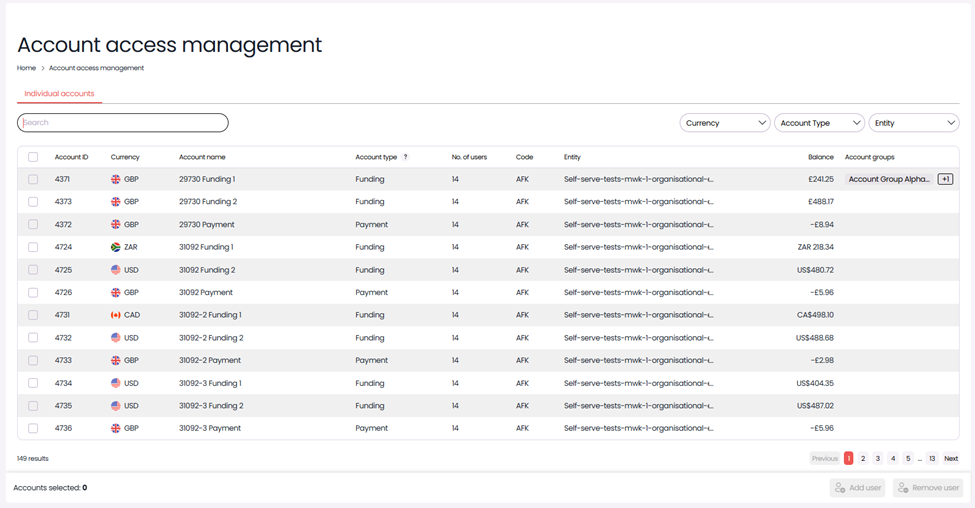
The table shows all the accounts you can manage.
Only accounts owned by your organisation are shown. Accounts assigned by delegated access are not included.
You can:
- Search by account name
- Filter by currency, account type, or entity
Assign users to accounts
- In the account access table, use the check boxes to select one or more accounts.
- Select Add user (bottom right) to view the user list.
You can search for users by name or email address.
- Select one or more users.
- Select Grant access.
- Confirm your selection.
Users gain access to the selected accounts. A confirmation banner appears when the access is granted.
The user list:
- Shows users with no or partial access to the selected accounts
- Displays a Current access column showing how many selected accounts each user can access
- Excludes users who already have full access to all selected accounts
Remove users from accounts
- Use the check boxes to select one or more accounts.
- Select Remove user (bottom right) to view the user list.
- Select users.
- Select Revoke access.
- Confirm your selection.
Users lose access to the selected accounts. A confirmation banner appears when the access is revoked.
The user list:
- Shows users with full or partial access to the selected accounts
- Displays a Current access column showing how many selected accounts each user can access
- Excludes users with no access to the selected accounts
Updated 18 days ago
Related information